
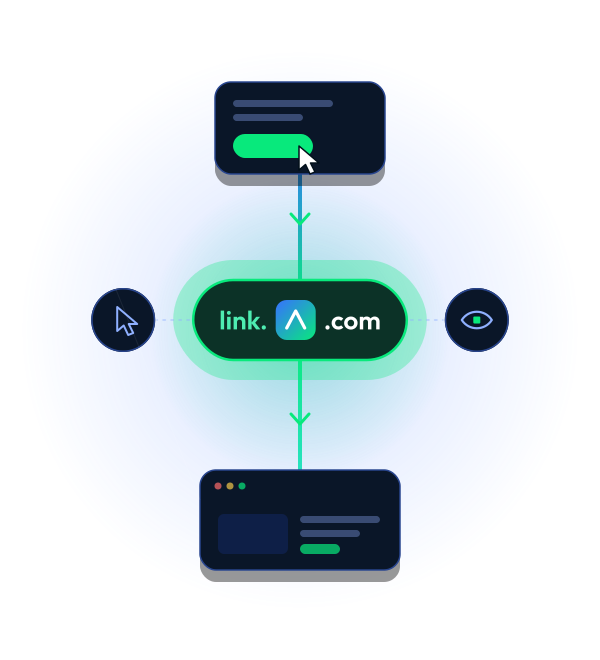
Learn how to set up your own tracking domain to protect your sender reputation, build trust with recipients, and support better email deliverability.
Prefer to watch rather than read?
Watch our quick video to learn how custom tracking domains work, why shared domains can put your sender reputation at risk, and how to configure your own with TurboSMTP.

What is a custom tracking domain?
A custom tracking domain is a domain or subdomain that belongs to your organization and is used to track email opens and clicks.
When you enable email tracking through an email service provider, your links typically use a shared tracking domain unless you’ve configured your own.
For example, if your company’s website is mycompany.com, you could create a tracking subdomain such as:
- link.mycompany.com
- click.mycompany.com
- news.mycompany.com
Instead of redirecting recipients through a generic domain shared with other senders, your tracked links will use a domain associated with your brand.
Two types of tracking you can track
1. Click tracking
When someone clicks a link in your email, TurboSMTP records the click before redirecting them to the original destination.
2. Open tracking
TurboSMTP adds a small, invisible pixel to your email. When the recipient’s email client loads it, an open can be recorded.
With a custom tracking domain, both types of tracking can use your own domain instead of a shared one.
Why use a custom tracking domain?
When you use a shared tracking domain, your emails can be affected by how other senders use it. If someone sends spam through the same domain, its reputation could suffer, potentially affecting your email deliverability too.
With your own tracking domain, you reduce that risk while keeping your tracking links consistent with your brand.
And there’s another advantage: when recipients hover over your links, they’ll see a domain they recognize instead of an unfamiliar one, making your emails feel more trustworthy.
Want to give it a try?
Contact our experts to get started.
How to set up a custom tracking domain
First, you’ll need a domain or subdomain to use for tracking. We recommend creating a subdomain of your existing company domain, such as link.yourdomain.com, to keep your tracking links consistent with your brand.
If you can’t use your existing domain, you can register a new one through a domain provider such as GoDaddy or Namecheap. There’s no need to purchase email hosting or build a website.
Once you’ve chosen your domain, you’ll need to add a CNAME record in your DNS settings to connect it to your email tracking service.
Not familiar with DNS records? Your hosting provider or domain administrator can help you set things up.
Set up your custom tracking domain on TurboSMTP
Log in to your TurboSMTP dashboard, go to Settings in the left-hand menu, and select the Tracking tab.

Enable Custom Tracking Domains using the toggle, then click Edit.

At least one of the Open Tracking or Click Tracking features must be enabled to use a custom tracking domain.
In the window that opens, you can add new tracking domains or manage existing ones. To create a new one, click Add tracking domain.

Enter your custom domain name. If you’d like to choose your own subdomain, select Advanced options; otherwise, TurboSMTP will generate one automatically.
Click Add tracking domain to continue.

TurboSMTP will display the two CNAME records you need to add to your DNS settings. You can follow this guide for instructions.

The second CNAME record is the same for all subdomains of your main domain, so you only need to add it once. DNS changes may take up to 24 hours to propagate.
After adding the records, click Verify, then OK to return to the Custom Tracking Domains management window.

Manage your tracking domains
The management table gives you an overview of your tracking domains, including:
- Verification status: A green checkmark indicates a verified domain, while a red exclamation mark indicates one that’s still pending.
- Dedicated: Available only in Match sender domain rotation mode, this option reserves a tracking domain exclusively for its corresponding sender domain.
- Status: Shows whether each domain is active or inactive.
You can filter the list by domain name, DNS verification status (verified/pending), domain status (enabled/disabled), or the Dedicated setting.

To enable or disable a domain, use the toggle in the Status column.
Click any domain to view its DNS records, access the verification option, or delete it if it hasn’t been verified yet.

Choose how your tracking domains are assigned
If you’ve configured multiple tracking domains, you can choose how TurboSMTP assigns them to your emails.
Under Domain Rotation, below the management table, click Change this behavior to select one of two modes:
- Do not match the sender domain (default)
TurboSMTP selects any active tracking domain, regardless of the sender’s domain. - Match sender domain
TurboSMTP uses the active tracking domain that matches the sender’s domain. If no match is found, it selects another active domain, excluding those marked as Dedicated.

Keep an eye on your domain reputation
Once your custom tracking domain is configured, TurboSMTP automatically adds it to its blacklist monitoring system. If your domain appears on a monitored blacklist, our team will contact you with recommendations on what to do next.



